Difficulty
Easy
Steps
4
Time Required
00:10:00 - 00:20:00
- Stage 10: First Print 4 steps

In Progress
This guide is currently being written. Reload periodically to see the latest changes.

Private
This guide will not appear in search results and can only be viewed by team members!
Quiz
0
-
-
Download the latest version of Cura here.
-
Run through the setup wizard and install it onto your computer.
-
Also download the benchy test print, this will be your first print and at the same time will test that the printer can safely print all of its geometries.
-
-
-
Open up the Cura application.
-
Run through the startup wizard.
-
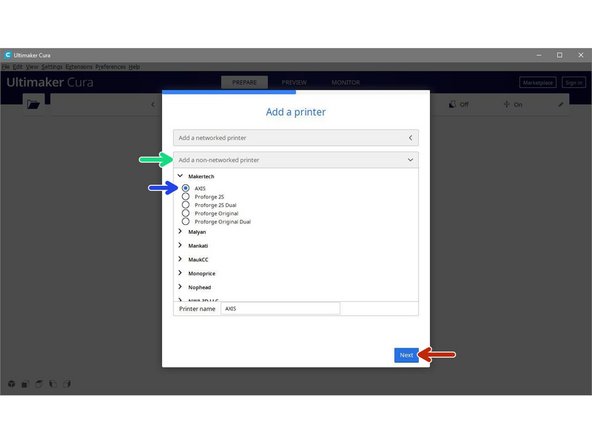
Click on "add a non-networked printer"
-
Scroll down to Makertech and select the AXIS 3d printer.
-
Then hit next.
-
-
-
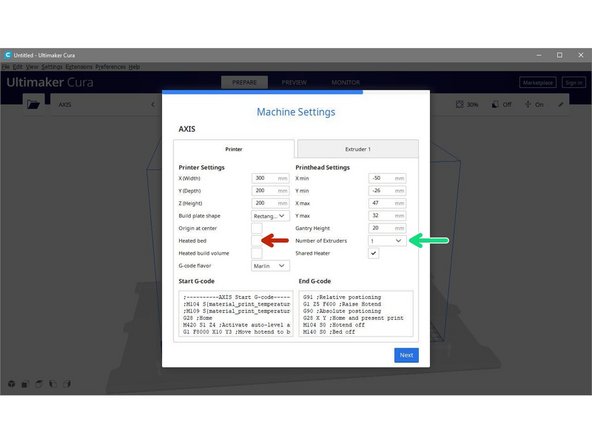
Here these setting will vary depending on your setup.
-
If you have a heated bed installed, check this box.
-
If you have dual extruders set-up, set number of extruders to 2.
-
Finally hit next and then finish.
-
-
-
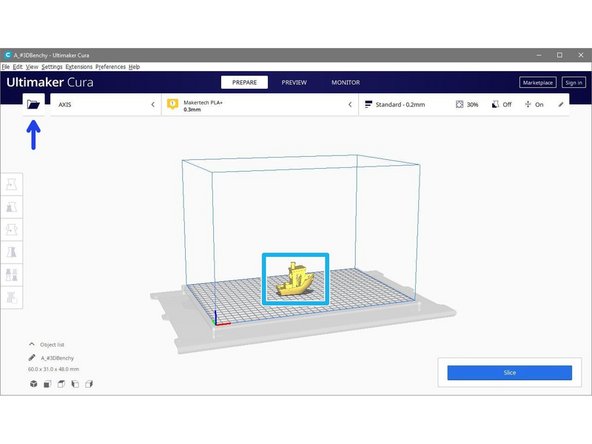
Click on the open file icon.
-
Navigate to and open the Bench stl file.
-