Difficulty
Moderate
Steps
26
Time Required
- Stage 10 - Programming 26 steps

In Progress
This guide is currently being written. Reload periodically to see the latest changes.
Quiz
0
-
-
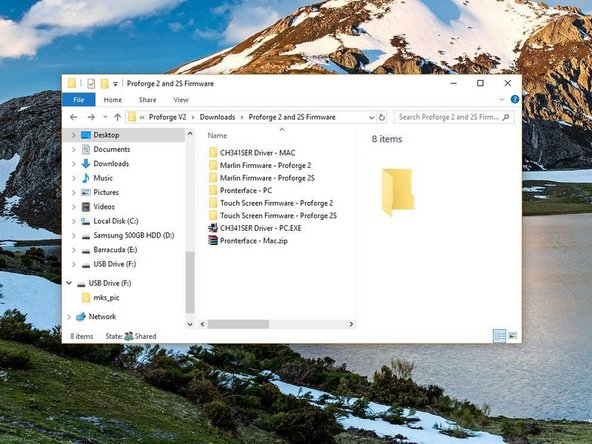
Begin by downloading the following files/software:
-
Marlin Firmware
-
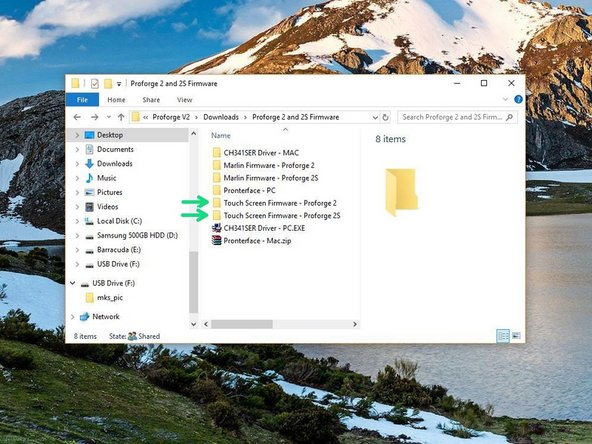
Touch Screen Firmware
-
USB Drivers
-
PrintRun - Printer Control Software
-
Download All Here
-
The downloads are in a compressed .zip format, you will need to use 7Zip to extract these files on PC.
-
-
-
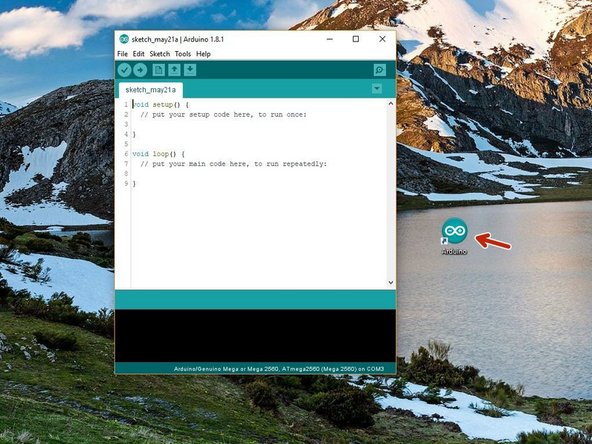
You will also need to download and install the Arduino IDE.
-
-
Follow the install instructions and install the latest Arduino IDE software to your computer.
-
-
-
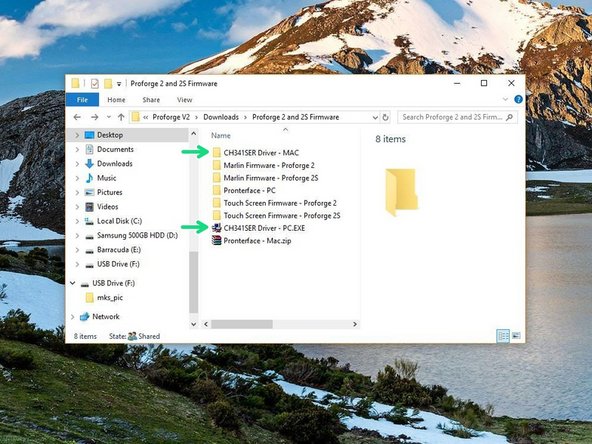
On PC double click on the CH341SER Driver - PC.EXE file. On MAC see the Readme.pdf file in the Mac folder.
-
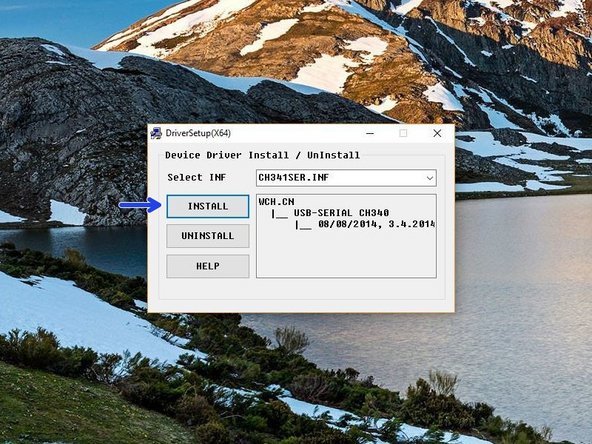
You may need to right click, "run as admin" to open.
-
Once open, click INSTALL.
-
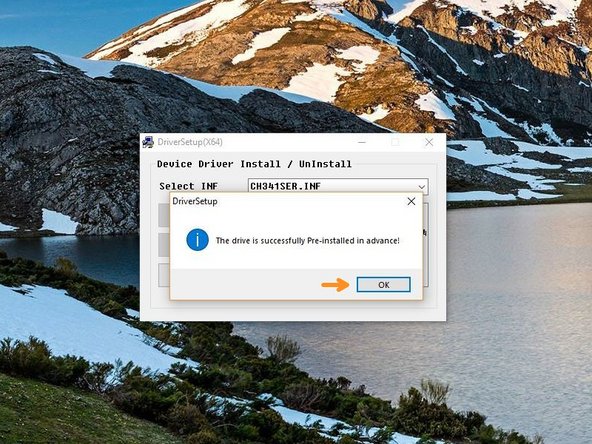
Once done, you should get a success message, click OK and close the programme.
-
-
-
Disconnect the Touch Screen display form the control board.
-
Plug the blue USB cable in to back of the printer.
-
Connect the other side of the cable to your computer.
-
-
-
Open the Arduino IDE that you installed in step 2.
-
Right click, Run as Admin
-
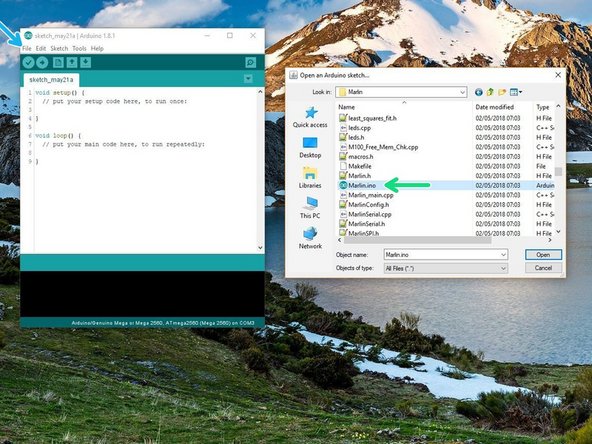
Go to File -> Open
-
Navigate to Marlin -> Marlin.ino in the Marlin Firmware folder that you downloaded in step 1.
-
Select the correct firmware depending on whether you are building the Proforge 2 or 2S.
-
-
-
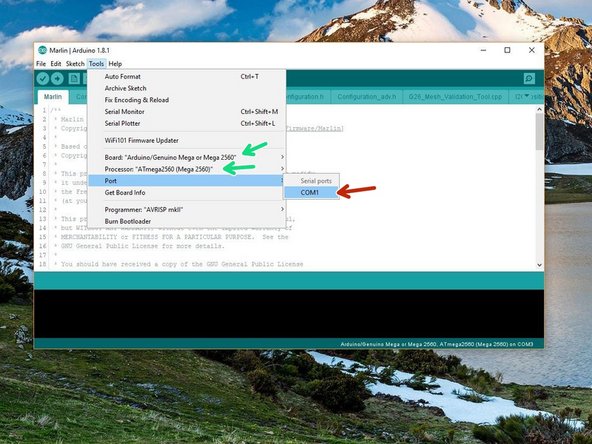
Go to Tools -> Port and select the port the Proforge 2/2S is connected to.
-
There should only be one but if you have others disconnect the Proforge from your computer to deduce the correct COM port.
-
Set the Board and Processor to Mega 2560
-
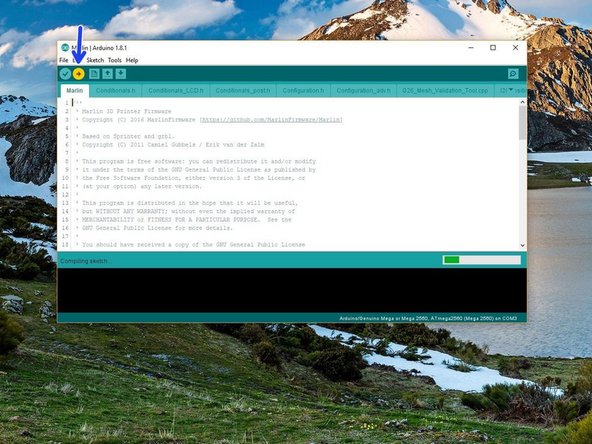
Click upload.
-
-
-
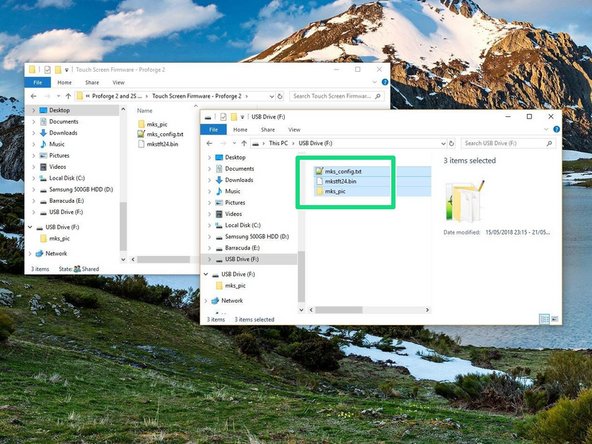
Copy the contents of the Touch Screen Firmware folder (depending on whether you're building a Proforge 2 or 2S) to the included SD card.
-
Make sure only the contents of the folder is on the SD card.
-
-
-
Unplug the USB cable from the Proforge.
-
Reconnect the Touch Screen to the control board.
-
-
-
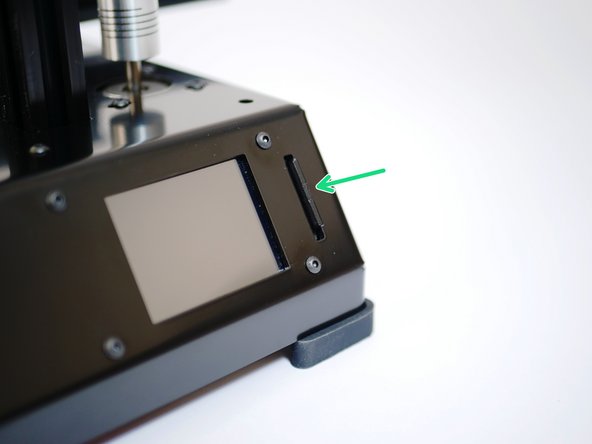
Insert the SD card (with Touch Screen Firmware on it) into the Proforge 2/2S.
-
Reconnect the Proforge to your computer via USB. The Touch Screen display should power up and begin installing the firmware immediately.
-
Wait for the install on the Touch Screen to finish, it should only take a minute.
-
-
-
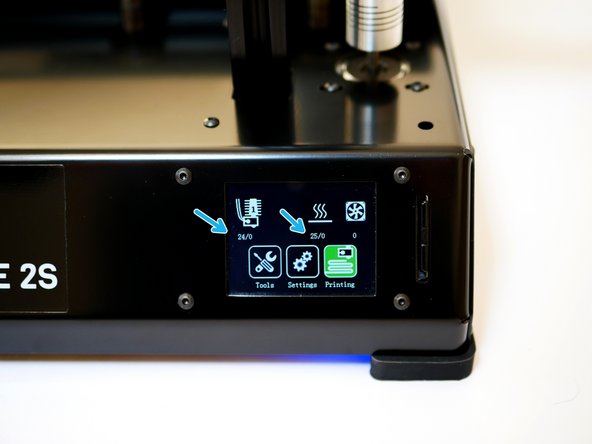
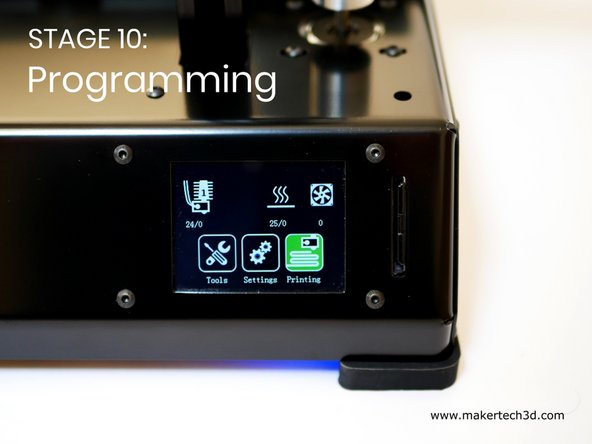
Once done uploading you should have a screen that looks like this.
-
Check that you are getting a correct temperature reading, ie. room temperature.
-
-
-
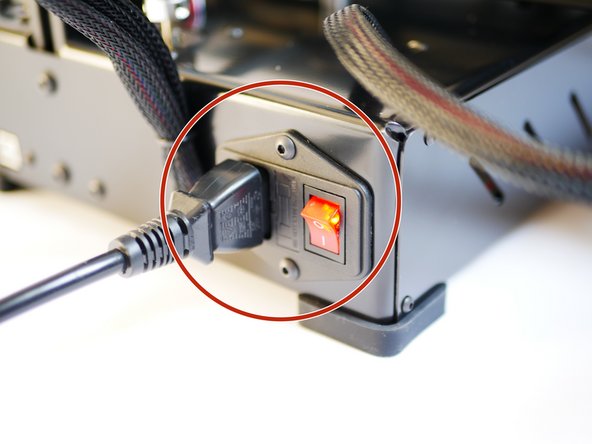
Once the firmware has done uploading keep the USB connected and power up the Proforge 2/2S via the mains power cable.
-
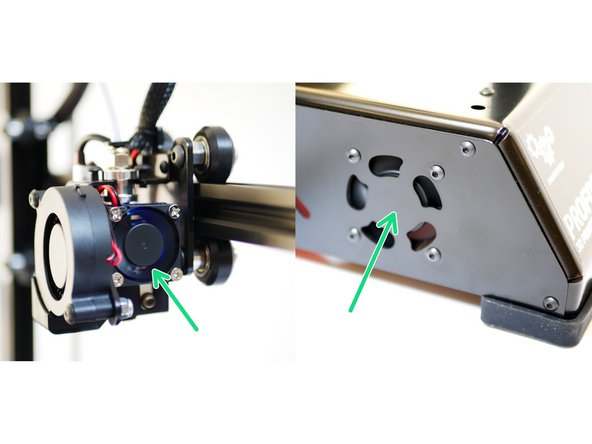
Check that the Hotend fan is spinning.
-
Check that the electronics fan is also spinning.
-
-
-
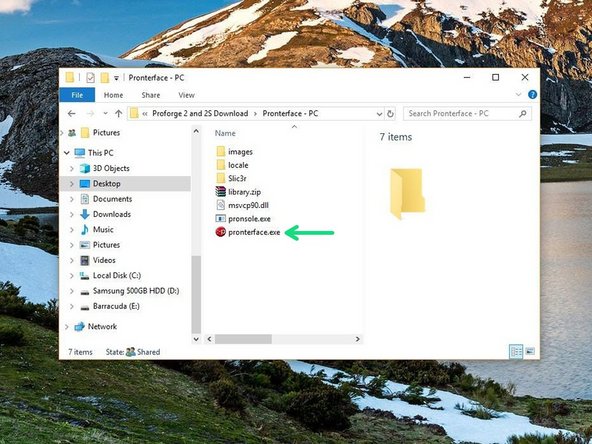
Launch pronterface directly from its folder.
-
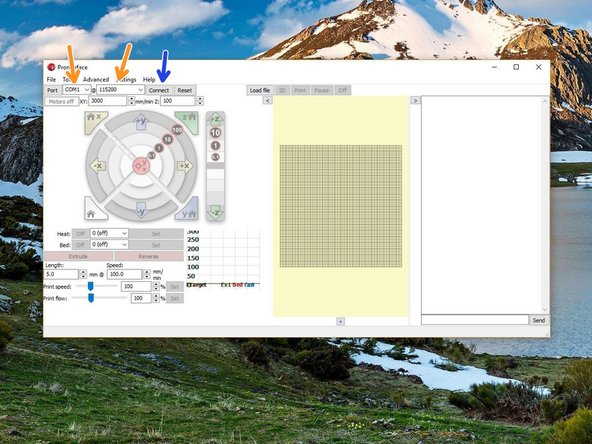
Select your COM port, and set the baud rate to 250000.
-
Connect to the Proforge 2/2S.
-
-
-
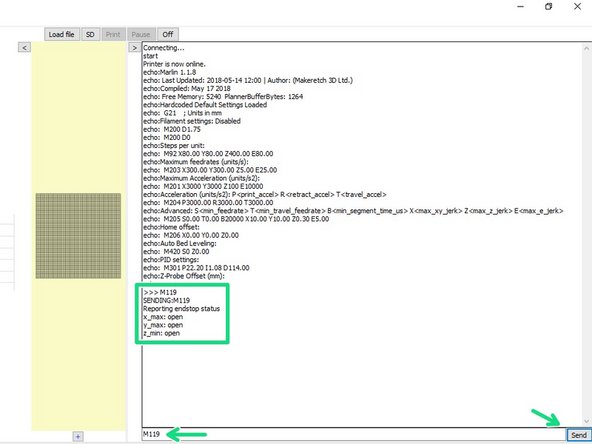
Once connected send an M119 command through the terminal on Pronterface.
-
It should read back open for both the endstops and probe.
-
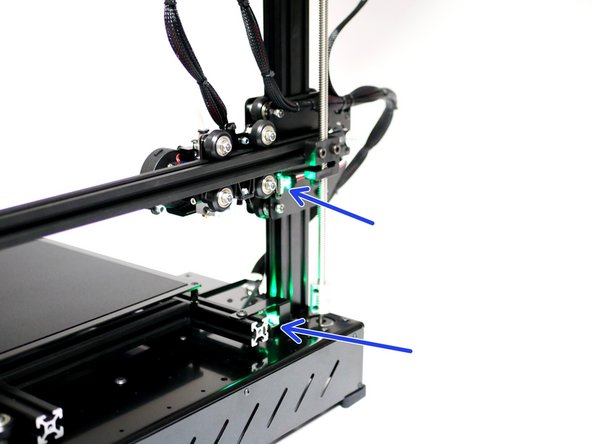
Move the axes so to trigger the X & Y endstops. A green light should shine.
-
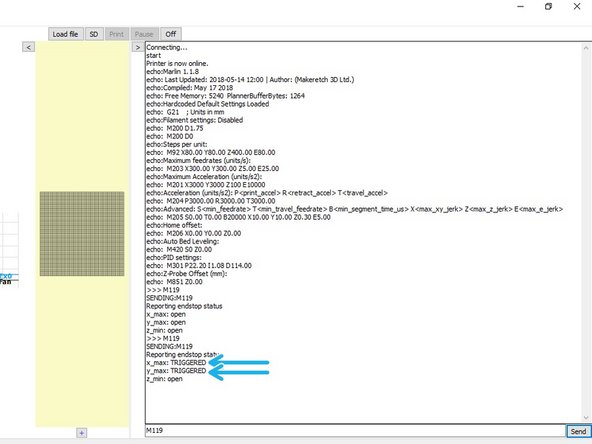
Send the M119 command again - the X & Y endstops should return with a TRIGGERED message.
-
-
-
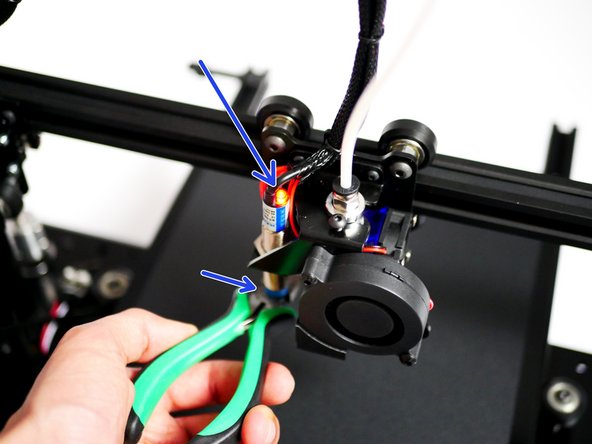
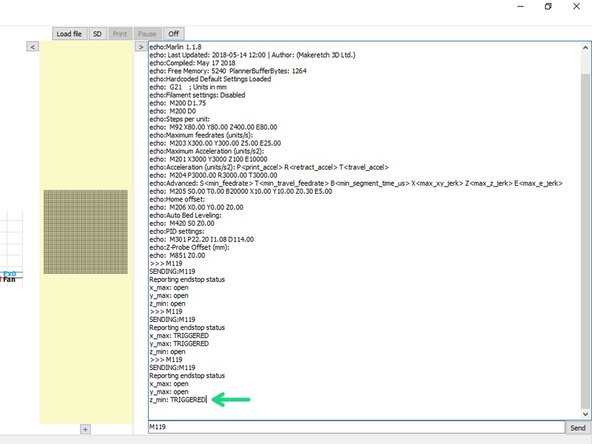
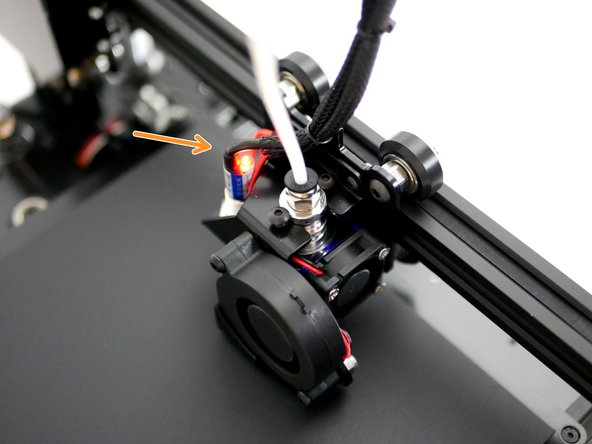
Whilst holding a metal object under the probe (a red light should shine) send the M119 command.
-
It should return: z_min: TRIGGERED.
-
-
-
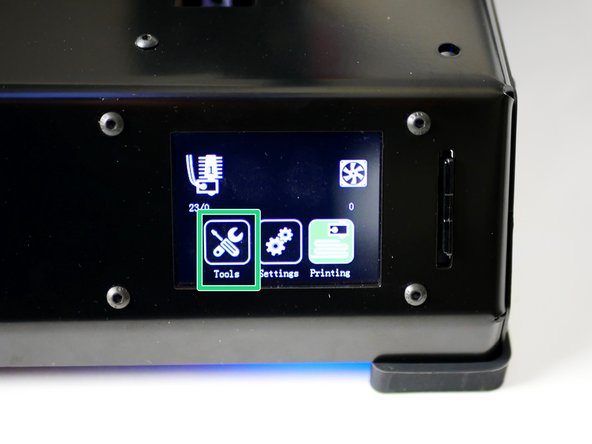
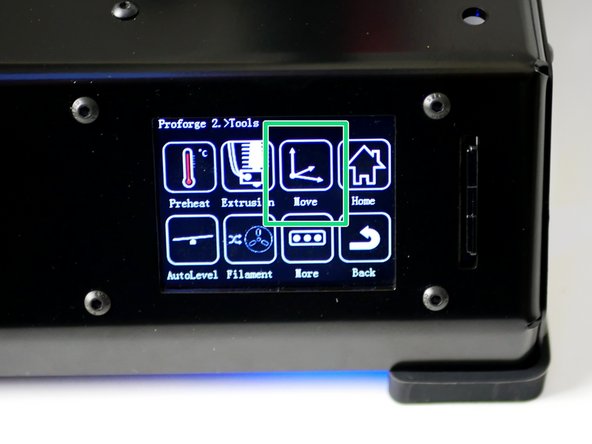
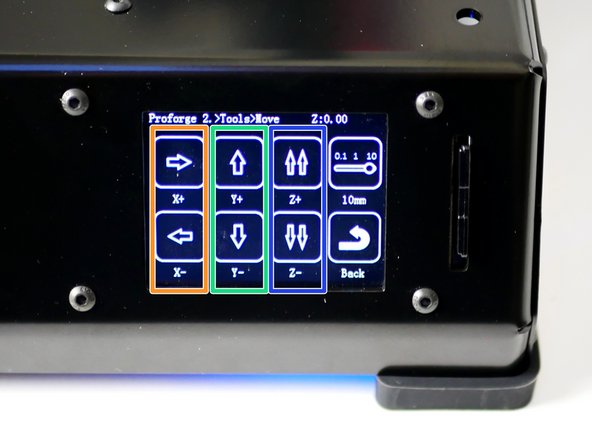
On the touch screen go to Tools -> Move.
-
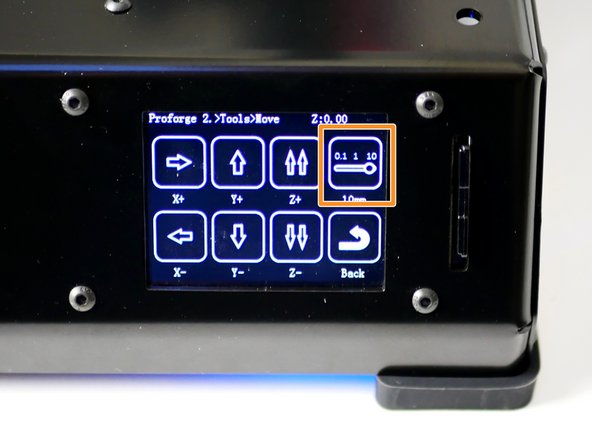
Press the toggle switch to set motion to 10mm.
-
-
-
X-Axis: Pressing the right arrow will move the bed to the left, and vice versa.
-
This is correct as the nozzle position has moved to the right relative to the bed.
-
Y-Axis: Pressing the forward arrow will move the hotend towards the endstop and vice versa.
-
Z-Axis: Pressing the double up arrow will move the gantry up and vice versa.
-
You will not be able to move to a negative position from your original starting position - this is normal.
-
-
-
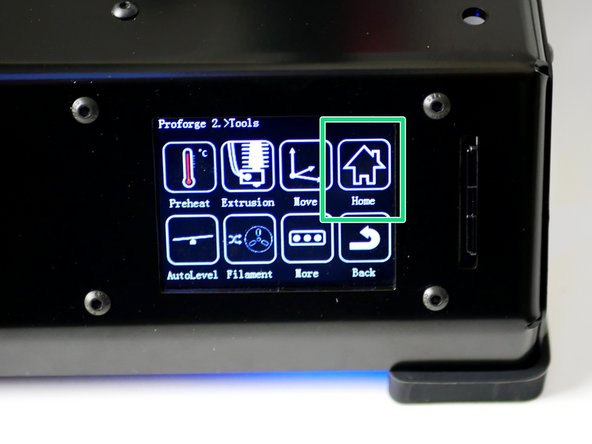
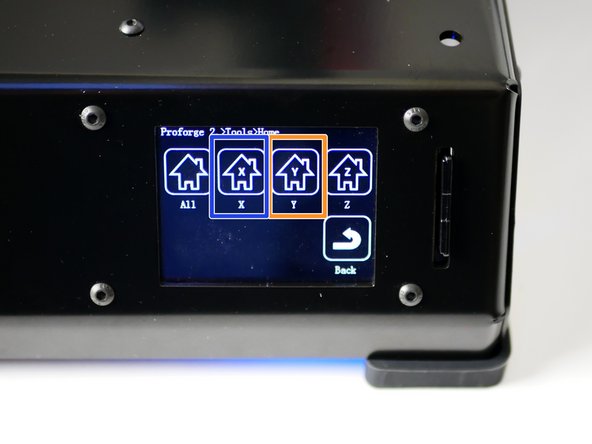
Using the touch screen go to Tools -> Home.
-
Home Y
-
Home X
-
Move the endstop trigger on the print platform frame so that when you Home X on the touch screen the nozzle stops directly above the edge of the surface sticker.
-
To be able to move the axes manually again; on the touch screen go to settings -> moto-off
-
-
-
Take your time completing the next three steps, impropper callibration here will at the very least impact print quality and at worse cause damage to the print platform and/or hotend nozzle.
-
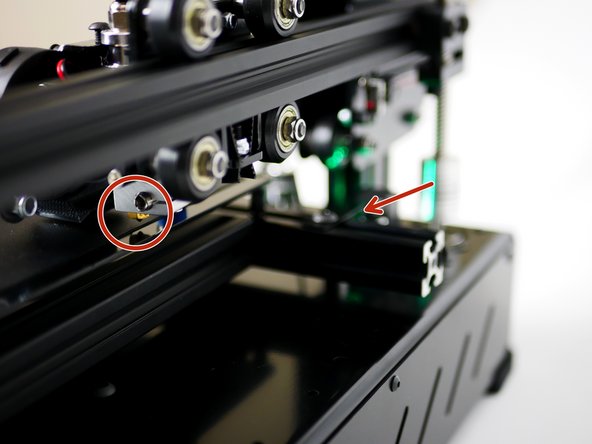
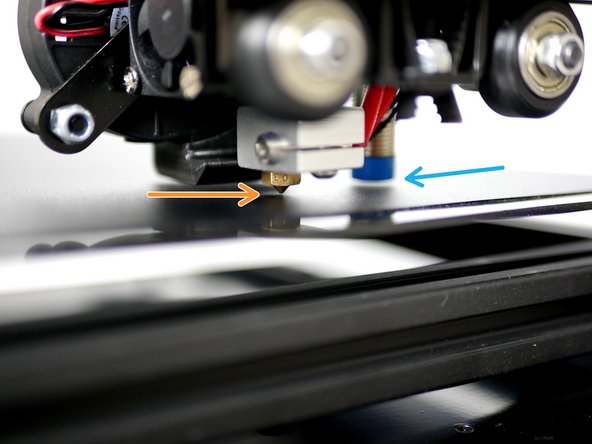
Align the probe as shown in the image:
-
The base of the probe must always remain above the tip of the nozzle.
-
The probe should trigger (red light) before the nozzle touches the bed (the distance before it touches can be as little as 0.5mm!)
-
To clarify it should be: Print surface -> 0.5-1mm gap -> Nozzle Tip -> 1-2mm gap -> Probe -> Red light on Probe
-
Once set move the gantry arm around a little to simulate vibrations - the red light on the probe should remain a solid red.
-
Whilst aligning the probe make sure that the fan shroud is also above the tip of the nozzle - if not its likely that the hotend mount has become bent during assembly/shipping. Simply pull the print fan away from the carriage to bend the hotend mount back the right way.
-
-
-
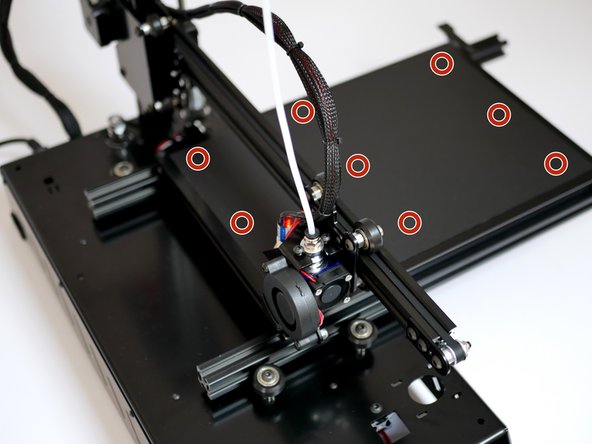
You can power off the Proforge 2/2S whilst doing this step.
-
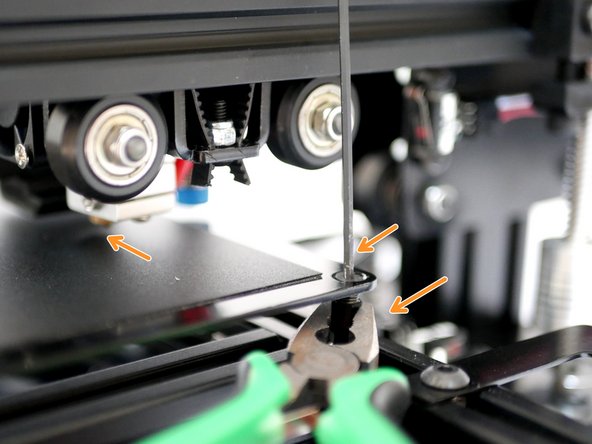
Move the nozzle to the highest corner on the print surface. Take care to not drag the nozzle accross the platform!
-
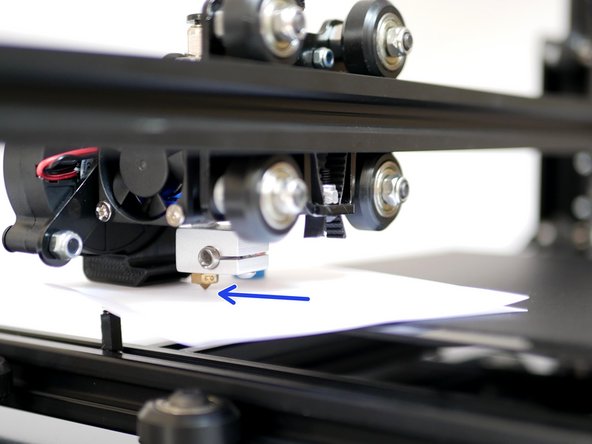
Adjust the z-axis to make the gap between the nozzle and the print surface small enough that you are able to pass a folded piece of paper between it with just a little friction.
-
For the rest of this process keep the z-axis fixed.
-
Move the Hotend to one of the other corners and repeat but, this time turn the screw on the platform to raise the bed to meet the nozzle. Hold the standoff with a pair of pliars to prevent the entire assembly from coming undone.
-
Repeat for the remaining two corners.
-
Check that the nozzle at this fixed z-position is level across the four corners of the print surface with the gap being as small as a width of a piece of paper folded in half.
-
-
-
To check that the probe and bed is set up correctly power up the Proforge 2/2S.
-
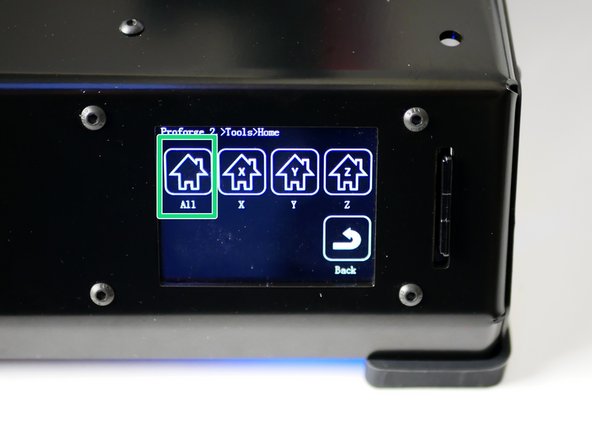
Using the touch screen go to tools -> Home -> Home All
-
X & Y will automatically home first. Then the probe should move to the centre of the platform and and slowly lower untill it's triggered.
-
The gantry will go up at first and then begin lowering - this is normal.
-
Have your finger ready on the power switch to power off in the event of a crash. If you do crash the hotend into the platform re-check your probe postioning - it's likely too far above the nozzle and needs lowering.
-
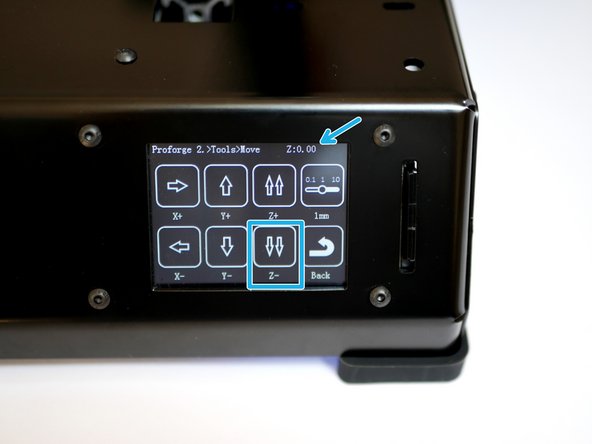
Once the Z-axis has homed, go to tools -> move and move the Z-Axis down to 0.
-
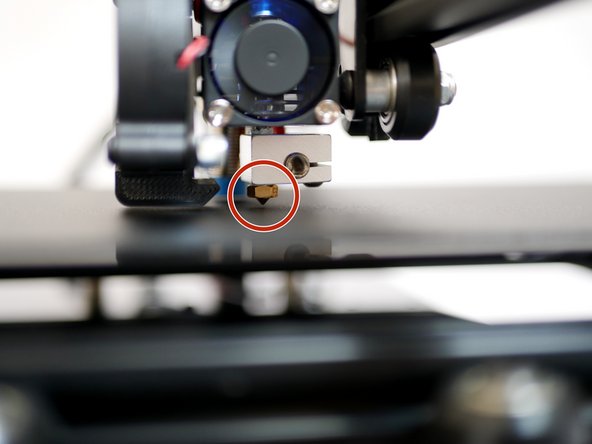
Check that you still have a gap between the nozzle tip and print surface.
-
-
-
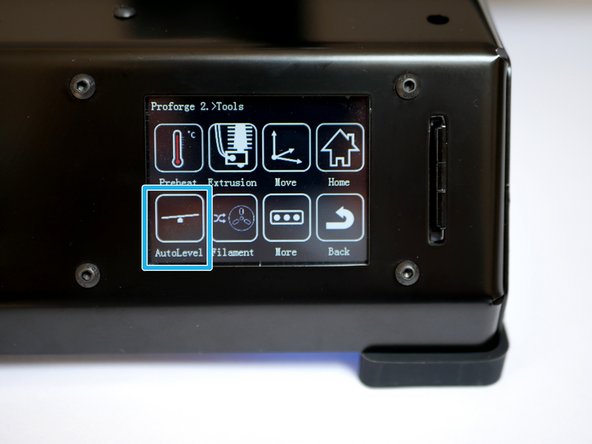
With a successful Z Home go to Tools -> auto-level. Press ONCE.
-
The axes will home again and the sensor will now go around the platform probing 9 points.
-
Again, have your finger ready on the power switch to power off in the event of a crash.
-
-
-
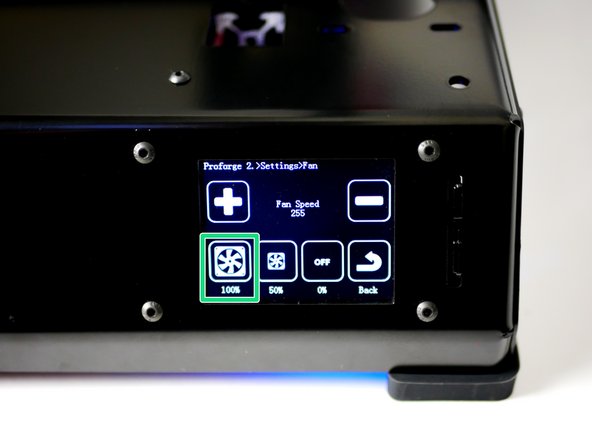
Go to Settings -> Fan
-
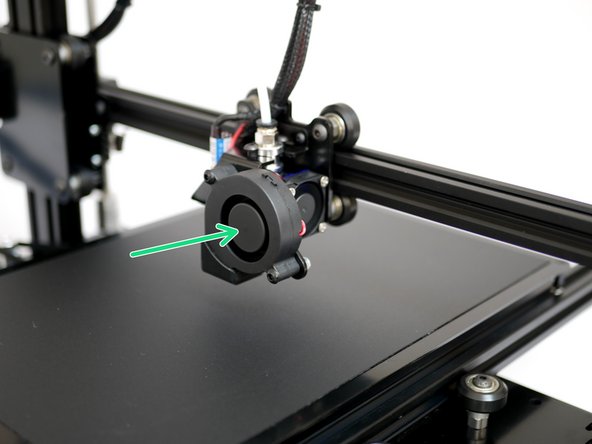
Power up to 100% and check that the blower fan is turning.
-
-
-
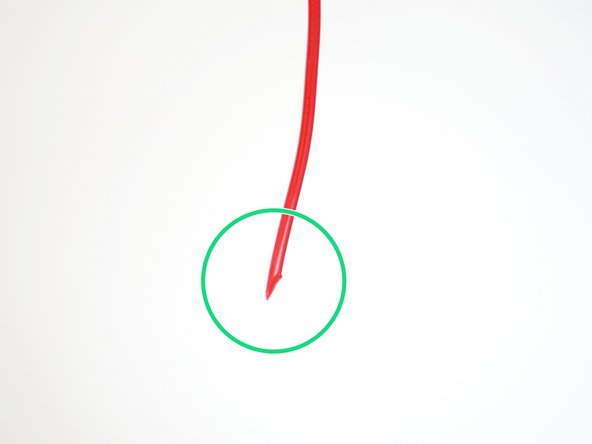
Take the included sample of PLA filament out of its packaging.
-
Use side cutters to cut a sharp end.
-
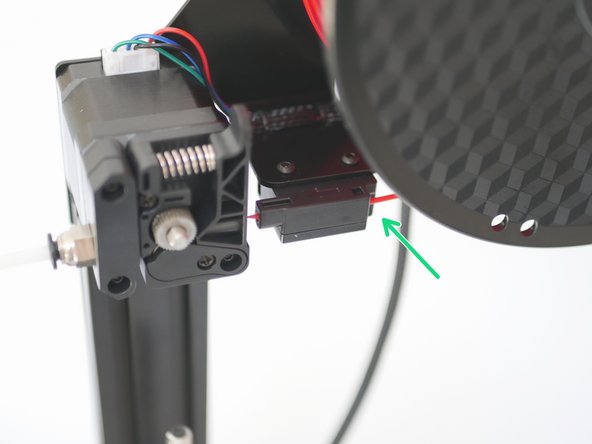
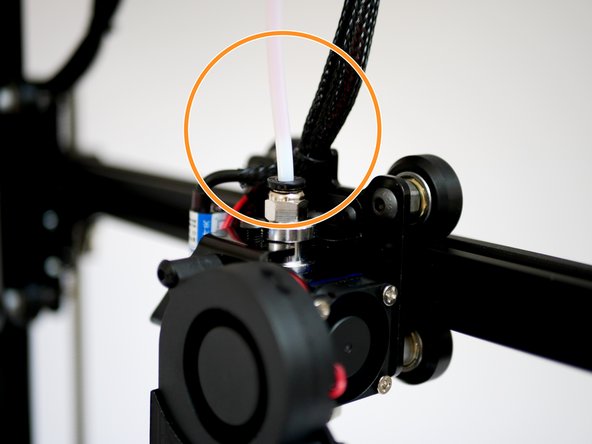
Feed it through the filament sensor.
-
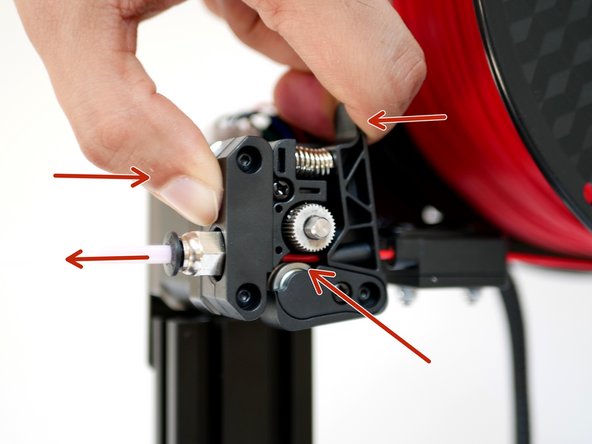
Press down the Idler arm and push the filament in thorugh the extruder.
-
-
-
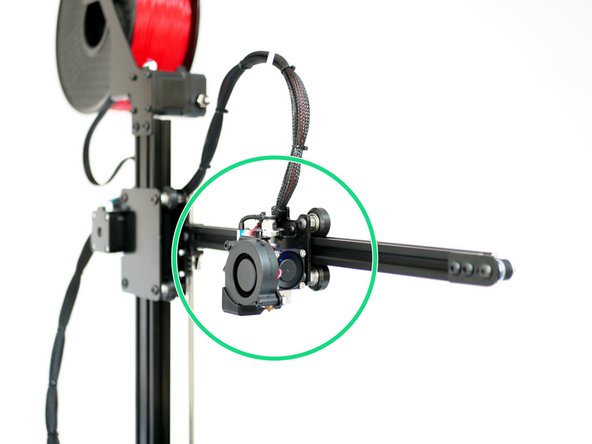
Move the gantry up to its highest postion.
-
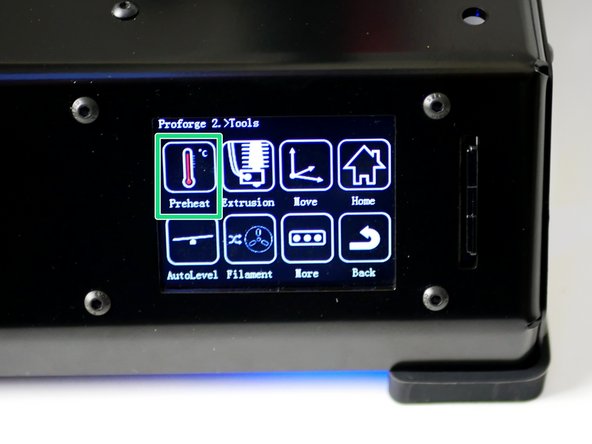
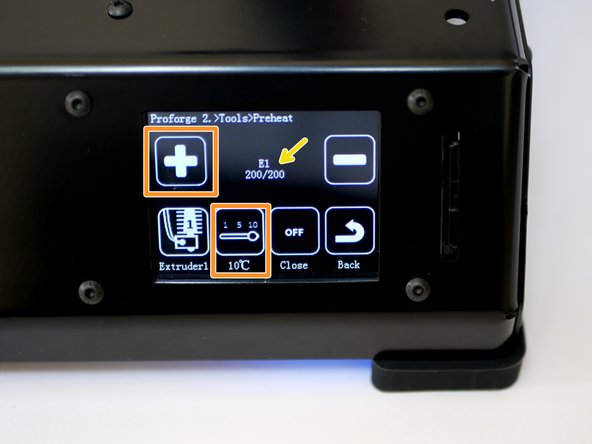
On the touch screen go to Tools -> Preheat and heat the extruder up to 200C.
-
Wait for the Hotend to heat up.
-
Take extreme caution - the hotend will cause burns if touched!!!
-
-
-
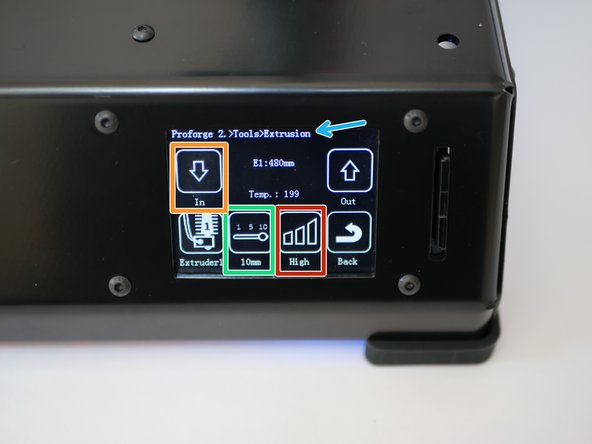
With the Hotend up to temp and the filament loaded, go to Tools -> Extrusion.
-
This is the length of filament that will be fed, each time you tap the down arrow.
-
This is the speed setting.
-
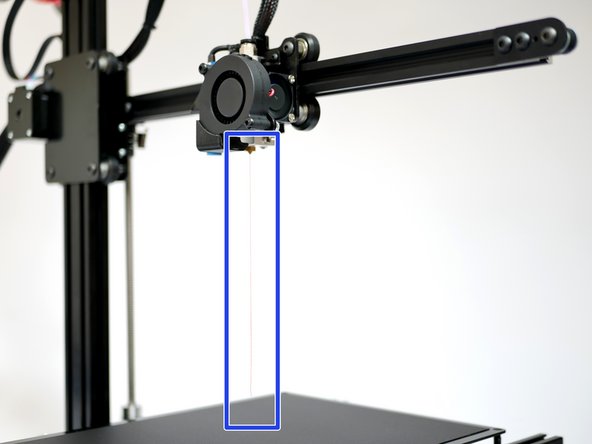
Keep extruding the filament until it reaches the top of the hotend.
-
Change the speed to normal and continue feeding the filament in.
-
You should have a smooth and straight flow of plastic coming out of the hotend.
-
The extruded plastic will be hot!!
-
NOTE: When powering down from a hot Hotend, power the hotend down first and let it cool to at least 100C before completely powering off - as this prevents the heat from rising up the hotend with the absense of the fan cooling it.
-
-
-
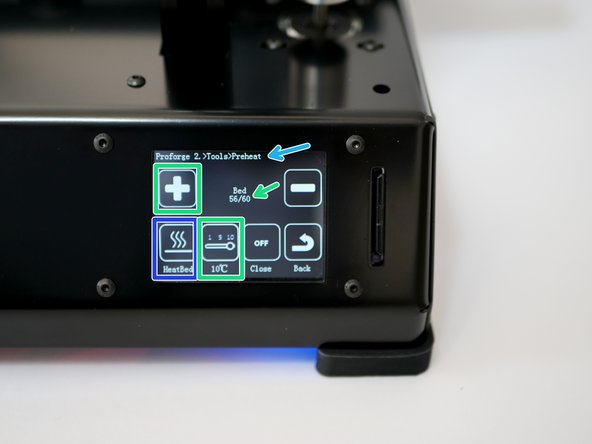
Go to Tools -> Preheat
-
Press the extruder icon to toggle to the bed.
-
Power on the bed by setting its temperature to 60C - typical for PLA printing.
-
The bed should begin to heat up.
-
Do not touch the bed when hot!!!
-